Disclosure up front. We make PicDock, the app used in the setup steps below, so we are not neutral. PicDock details here come from our PicDock facts page and from our own tests of the Amazon edition on a Fire HD 8; anything we could not confirm on Fire OS is labelled "not verified on Fire OS". Amazon's own options are described from Amazon's help pages, checked on October 8, 2026 — and for some families they are all you need.
Fire tablets are cheap, often already in the house, and happiest sitting on a charger — which is exactly what a photo frame does. Two things make them different from other Android tablets, though: they have no Google Play services, and Fire OS does not support third-party screensavers. Both decide how you set one up.
Short answer: first see whether Amazon's built-in options cover you (below). If not, install a frame app from the Amazon Appstore, use a photo source that does not depend on Google (photos on the tablet, a NAS, Dropbox, OneDrive or an iCloud shared album link), and leave the tablet on its charger with the app open.
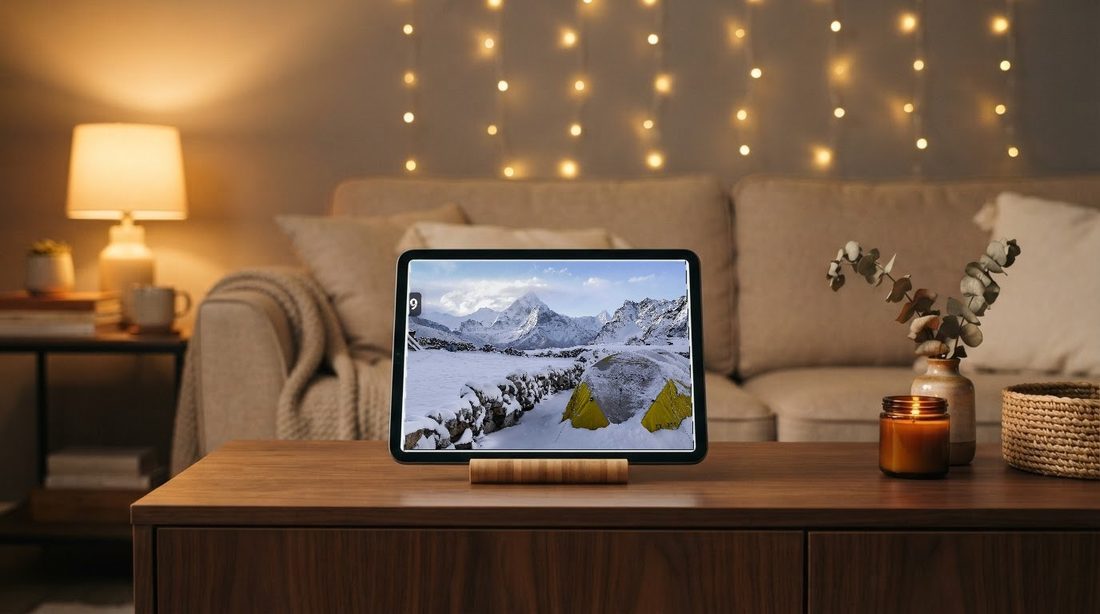
First: Amazon's own options (Show Mode, Amazon Photos, Daily Memories)
Before installing anything, here is what Amazon itself documents. We checked each page on October 8, 2026.
- Show Mode. Amazon's help page "Switch to Show Mode on Your Fire Tablet" says it turns a compatible tablet "into a visual display to engage with Alexa from across the room". You switch it on by swiping down from the top of the home screen and toggling Show Mode, from the Alexa app, or by saying "Alexa, switch to Show Mode". It is compatible with the Fire HD 8 (7th, 8th and 10th generation) and Fire HD 10 (7th, 9th and 11th generation), and not with the Fire 7 (7th, 9th and 12th generation), the Fire HD 8 (12th generation), the Fire Max 11 or the Fire HD 10 (13th generation). That page does not say anything about showing your photos.
- Daily Memories. Amazon's page "About Daily Memories and This Day" describes it as "a curated set of photos on your Echo Show's home screen refreshed daily", enabled in the Alexa app, and notes that turning it on uses Auto-Save, which "uploads all photos from your camera roll". The page is written for Echo Show; it does not mention Fire tablets.
- Amazon Photos. Amazon's Amazon Photos features page lists the devices it can display photos on as "Echo Show, Echo Spot, and Fire TV devices", and says Amazon Photos "automatically creates curated slideshows" (Daily Memories, This Day, Stories). The Amazon Photos app listing in the Appstore lets you "select an album or collection to 'Play a slideshow'", but that listing describes the Fire TV app.
What that means for a Fire tablet: we did not find an Amazon help page that describes a continuous photo slideshow in Show Mode or on a Fire tablet's home screen. Amazon's photo-display features are documented for Echo Show and Fire TV. So if your tablet supports Show Mode, swipe down, switch it on and simply look — if it shows your Amazon Photos the way you want, you are done and do not need an app.
When the built-in option is enough: your photos are already in Amazon Photos, you want an Alexa display anyway, and you do not need a particular album, a clock and weather over the photos, or a night schedule. When a frame app earns its place: the photos live somewhere else (a NAS, Dropbox, OneDrive, an iPhone family's shared album, a microSD card), your model is not on the Show Mode list, or you want frame features such as a clock and weather over the photos, a sleep schedule, two portrait photos side by side, and starting by itself on the charger.
What you need for the app route
- A Fire tablet on Fire OS 6 or later — for example a Fire HD 8 or Fire HD 10. PicDock needs Android 7.0 or later; tablets still on Fire OS 5 (based on Android 5.1) cannot install it. Our test tablet was a Fire HD 8 (10th generation) on Fire OS 7.3.3.1.
- A charger and a stand, or a case that folds into one. A lit screen all day drains any tablet; a frame stays plugged in.
- PicDock from the Amazon Appstore — the store name is "Photo Slideshow, Digital Frame", by DD_studio. It is not the macOS app picdock.app, which is an unrelated product. Store links for every platform: devdad.kr/picdock.
What the Amazon edition costs
The Amazon Appstore edition is a paid app: US$4.99 (the Appstore converts it to local prices in other countries). All features are included, and there are no ads and no in-app purchases. The Amazon build has every Premium feature switched on and the ad and purchase code removed.
The Google Play edition, for other Android tablets, works differently: every photo source except web upload is free; optional Premium is sold as lifetime, yearly or monthly. Those Google Play options do not exist on Fire; the Amazon price above is the whole cost there. Full details: PicDock facts page.
Photo sources: what works without Google Play services
Fire tablets do not include Google Play services, and some sign-ins depend on them. Here is each source, and how sure we are:
- Photos on the tablet (copied over USB, from a microSD card, or taken with the tablet) — read through Android's standard media library, no Google involved.
- NAS or Windows shared folder (SMB) — Synology, QNAP, a Windows PC. Its photo list loaded in our Fire HD 8 check on an earlier build (1.6.5). Setup: NAS photo frame guide.
- Dropbox — signs in through Dropbox's own page in the browser, not through Google. Its photo list loaded in our Fire HD 8 check on an earlier build (1.6.5); sign-in and automatic refresh in the current version are not verified on Fire OS. Guide: Dropbox folder.
- OneDrive — signs in through Microsoft's page in the browser, not through Google. Not verified on Fire OS. Guide: OneDrive folder.
- iCloud shared album — you paste the album's public link, no sign-in at all. Its photo list loaded in our Fire HD 8 check on an earlier build (1.6.5); large albums are not verified on Fire OS. Guide: iCloud shared album.
- Google Photos — may not work. PicDock's Google Photos source signs in with Google, which relies on Google Play services, and Fire tablets do not have them. We have not tested it on Fire OS. How to check: open Photo sources, choose Google Photos, and see whether the Google sign-in screen appears and lets you finish. If it does not, use one of the sources above.
Please do not sideload Google Play onto a Fire tablet to get around this. It is not a setup Amazon supports, it can break with Fire OS updates, and it is a poor foundation for a device meant to run untouched for months. If your family photos are in Google Photos, a regular Android tablet is the better frame.
You can mix sources on one frame — for example a NAS folder plus a Dropbox folder — as one combined slideshow. Cloud and NAS sources refresh by themselves at intervals, so new files in the chosen folder appear without touching the tablet.
Other Fire differences we found and fixed
- Weather location. Automatic location uses Google Play services, so on Fire it does not work. Fire OS's own city lookup also failed on our Fire HD 8, so PicDock now looks cities up through Open-Meteo instead: type your city name in weather settings.
- Face filter and person grouping use on-device models bundled inside the app, so they do not need Google Play services. Face detection and grouping people ran on our Fire HD 8 (a 32-bit device) without running out of memory.
- No "Premium" badges. Early Amazon builds showed Premium badges to people who had already paid; the paid build now hides them.
The screensaver limit — and what to do instead
On Android tablets and Android TV, a frame app can be the system screensaver (Android's "Daydream"): the device starts it by itself while charging. Fire OS does not support third-party screensavers, so PicDock's screensaver mode is not available on Fire tablets. The frame has to be the app itself, open in front.
That is less of a problem than it sounds, because the app is built to be left open:
- Keeps the screen on while it is in front, so you do not need to change the Fire's screen timeout.
- Auto-start when the charger is connected, and after a reboot. The switch is in the Amazon edition too. Not verified on Fire OS — check it once by unplugging and replugging.
- Sleep schedule for the night, optionally turning the screen off. Waking the display in the morning is not verified on Fire OS.
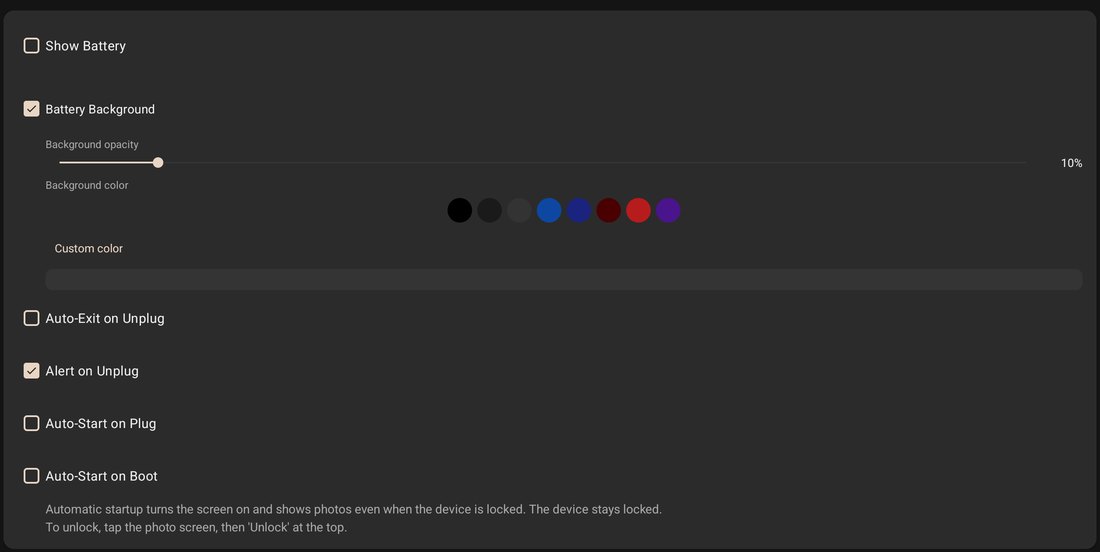
More on the unattended part — screen, reboots, night: always-on tablet guide.
Setup in four steps
- Install PicDock from the Amazon Appstore on the Fire tablet.
- Choose a source in Photo sources: on the tablet, NAS, Dropbox, OneDrive or an iCloud shared album link.
- Weather (optional): type your city name.
- Charger and stand: leave the app open. Optionally turn on auto-start on charger and a sleep schedule, and test once by unplugging and replugging.
What it doesn't do
- No screensaver mode on Fire. Fire OS does not support third-party screensavers; the app has to stay open.
- No Amazon Photos source. PicDock cannot read your Amazon Photos library. If your photos are there, Amazon's own options above are the natural fit (or copy the photos onto the tablet).
- No Google Drive source, on any platform.
- Google Photos may not work on Fire (see above), and on any platform the Google Photos picker shows only the photos you picked — new photos are not added by themselves.
- No video from cloud folders. Videos play from the tablet's own storage, and from a NAS as an opt-in beta.
- No app for sending photos from a phone to the frame. Family members add photos by putting them in a shared Dropbox or OneDrive folder, a NAS share or an iCloud shared album; someone at home can also use web upload from a browser on the same network.
- No Alexa. PicDock is not a smart display; if you want Alexa on the screen, that is Show Mode.
FAQ
Can a Fire HD 8 be used as a digital photo frame?
Yes. Install a frame app from the Amazon Appstore, choose where the photos come from, and leave it on its charger with the app open. The app needs Fire OS 6 or newer (Android 7.0+); tablets still on Fire OS 5 cannot install it. We tested on a Fire HD 8 (10th generation), Fire OS 7.3.3.1.
Does Fire tablet Show Mode show my photos?
Show Mode turns a compatible Fire tablet into an Alexa smart display, per Amazon's help page (compatible models listed above). Amazon's help pages describe photo backgrounds and Daily Memories for Echo Show and Fire TV devices; we found no Amazon page describing a photo slideshow in Show Mode on a Fire tablet, so switch it on and look before relying on it.
Does Google Photos work on a Fire tablet photo frame?
It may not. PicDock's Google Photos source signs in with Google, which relies on Google Play services, and Fire tablets lack them. Not tested on Fire OS. To check, choose Google Photos in Photo sources and see whether the Google sign-in finishes; if not, use another source. Do not sideload Google Play for it.
Can a photo frame app run as the Fire tablet screensaver?
No. Fire OS does not support third-party screensavers. Keep the app open on the charger instead; it keeps the screen on and can start itself when the charger is connected.
In short
Try Amazon's own options first if your photos are in Amazon Photos and your model supports Show Mode. Otherwise a Fire tablet makes a good frame if you work with its two limits: no Google Play services (so use the tablet's own photos, a NAS, Dropbox, OneDrive or an iCloud shared album — Google Photos may not work) and no third-party screensaver (so keep the app open on the charger).
PicDock store links (Amazon Appstore edition: paid, US$4.99) · PicDock facts · Android frame app comparison